
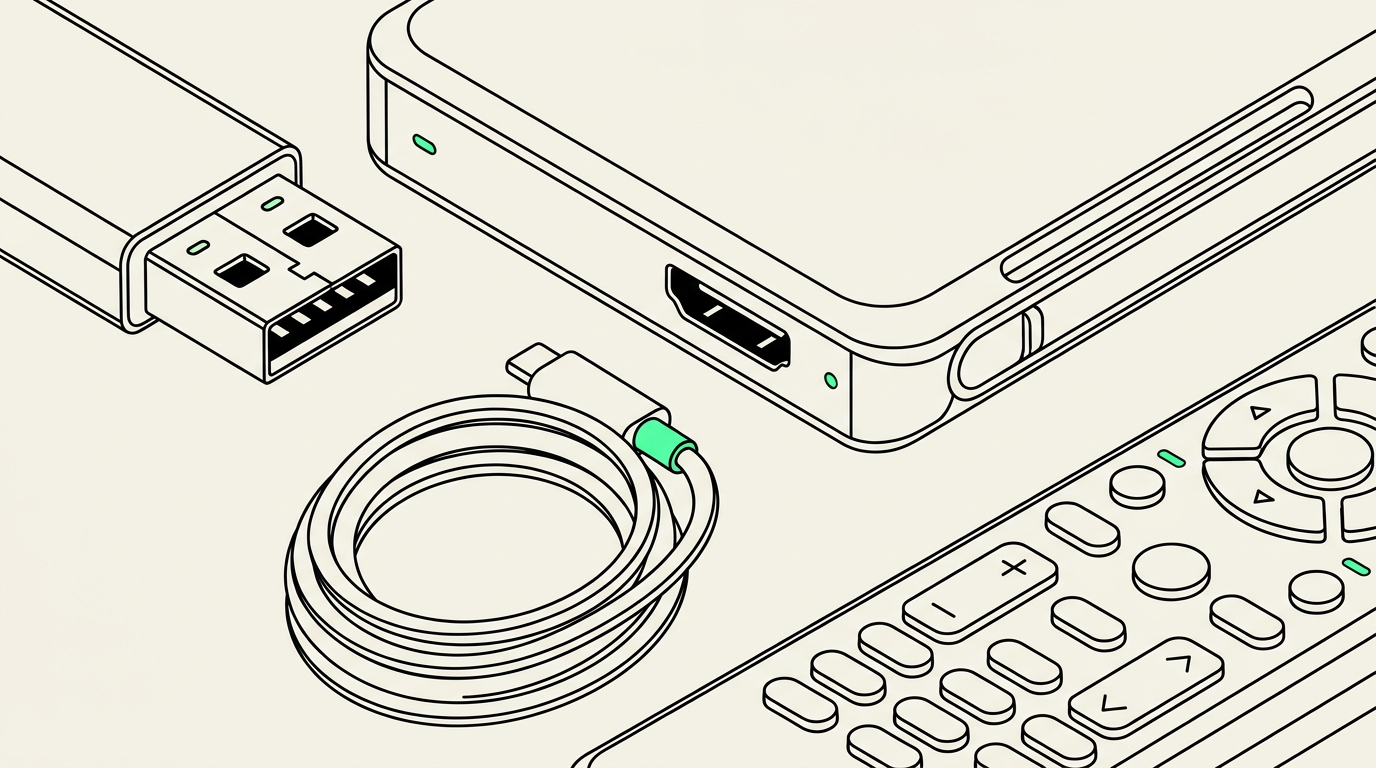
You can watch digitized home movies on your TV by plugging in a compatible USB drive, connecting a computer with an HDMI cable, or streaming from a phone or computer. An MP4 file containing H.264 video and AAC audio is a widely supported starting point, but your television’s specifications determine what plays directly from USB.
Choose your playback method before ordering a transfer
If your goal is to watch family movies in the living room, tell your digitizing studio that—not just that you want digital files. A file that opens on a computer may not play through an older television’s USB port. Sharing your TV’s brand and model number helps make the compatibility discussion specific.
For a Phoenix family preparing movies for a reunion, the best setup is usually the one someone can test beforehand. Avoid making the first playback attempt when everyone has gathered around the screen.
USB: convenient when your TV supports it
Many televisions have a USB media player. Copy a movie onto a compatible flash drive, insert it into the TV, and look for a menu labeled Media, USB, or Photos and Videos. A USB socket alone does not guarantee video playback; some ports support only service functions or limited media types.
- Check the manual: Look for supported video codecs, audio codecs, resolutions, and USB drive formats.
- Test one file first: Confirm that both picture and sound work before copying your entire collection.
- Keep navigation simple: Try a clearly named test file in the drive’s top-level folder if the TV struggles to find it.
Some portable hard drives need more power than a television’s USB port supplies. If a drive repeatedly disconnects or never appears, try a compatible flash drive rather than assuming the movie files are defective.
HDMI: a practical fallback for compatibility problems
A laptop connected to the TV with HDMI often avoids the television’s built-in file restrictions because the computer handles playback. Select the correct HDMI input, open the movie on the computer, and switch to full-screen viewing.
If you see a picture but hear sound only from the laptop, select the TV or HDMI connection as the computer’s audio output. Computers without an HDMI port may need a compatible video adapter; not every USB-C port supports video output.
Streaming: useful, but test the connection
AirPlay, Google Cast, and media-server apps can provide wireless playback when your devices support them. The phone or computer and receiving device generally need to be on the same local network. An app that plays a file on your phone does not necessarily support sending it to your television.
For an important gathering, keep a tested HDMI or USB option available. Wi-Fi interruptions, app permissions, and device compatibility can turn a simple screening into troubleshooting.
Why an MP4 file might not play
MP4 is a container, not a complete compatibility specification. The video and audio inside it may use different codecs. A TV might recognize the filename but reject the video, play without sound, or stop when the file exceeds its supported limits.
Drive formatting matters, too. FAT32 cannot hold a single file of 4 GiB or larger, which can become an issue with long home-movie transfers. Other formats, such as exFAT or NTFS, allow larger files, but television support varies. Do not reformat a drive containing your only copies: formatting erases its contents.
If a file plays correctly on a computer but not on the TV, ask about making a TV-compatible viewing copy. Keep the original transfer file unchanged rather than repeatedly converting and replacing it.
What to expect from different home-movie formats
VHS, Hi8, and Digital8 tapes
Many VHS, Hi8, and Digital8 recordings have a roughly square 4:3 picture. Vertical black bars on a widescreen TV are normal; stretching the image to fill the screen makes faces and objects look wider. Some camcorder recordings are widescreen, so use the setting that preserves the recording’s original proportions.
Tape recordings may also contain interlaced video. Jagged, comb-like edges during movement can indicate a playback or deinterlacing issue. Ask how the viewing copy will handle interlacing, and remember that a large modern screen can make the limitations of older recordings more noticeable.
8mm and Super 8 film
Film transfers should preserve the picture’s proportions and use an appropriate playback speed. Do not assume that filling a widescreen television or making every movement look unusually smooth is an improvement. Many home-movie reels were silent, although sound versions exist; missing audio is not automatically a playback fault.
Home-recorded DVDs
A home-video DVD may contain a VIDEO_TS folder with several files rather than one ready-to-play movie. Copying that folder onto a flash drive is not the same as creating a TV-compatible video file. When requesting DVD-to-digital service, explain whether you want straightforward movie playback rather than disc-style menus.
Plan your transfer around the screen you use
Phoenix Scanning serves Chandler and the East Valley with drop-off and local pickup in Chandler, AZ 85224, plus free prepaid shipping labels for mail-in customers nationwide. Review the digitizing services, then use the quote builder and mention your preferred viewing method when discussing the project.
For compatibility questions, have your TV model number and source formats handy. Call (480) 272-2447, Monday–Friday, 9am–5pm, to discuss your collection and viewing goals before bringing it in or mailing it.
Common questions
Can I plug a USB flash drive directly into my TV?
Often, yes, if the TV supports USB video playback and recognizes both the drive format and the movie’s video and audio codecs. Check the TV manual and test one movie first.
Why does my home movie have black bars on the sides?
Many older recordings use a 4:3 picture rather than a widescreen shape. Side bars preserve the original proportions without stretching or cropping the image.
Do I need a smart TV to watch digitized tapes?
No. A TV with an HDMI input can display movies played on a compatible computer connected by HDMI, even without smart-TV features.
Will digitizing make my old movies look like HD video?
No. Digitizing preserves the detail available in the source; it does not recreate detail that was never recorded. Careful transfer and appropriate playback settings can help avoid additional quality loss.